这个标题会看起来很奇怪:都用了Docker了,为什么还要在VM里部署呢?
是的,一般来说,很少会有人有这种需求:当需要大规模部署Docker容器时,往往我们会使用更成熟的容器方案,例如:K8S。
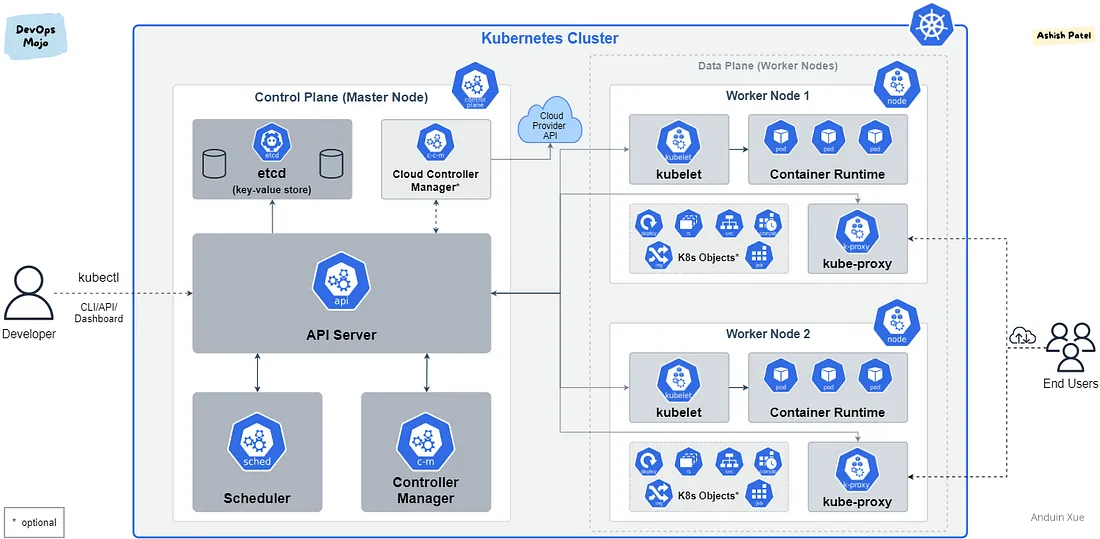
但是,或许你的数据中心仍然停留在基于虚拟机(VM)的部署模式,而某些业务又不提供VM的部署方法而只提供了一个Docker映像,此时就显得十分尴尬。为了这一个容器,去建设一个K8S显然如同大炮打蚊子。而如果在VM中专门安装一个Docker,又丧失了Docker的共享内核、轻量的优势。
这种痛苦最终可能妥协为混合部署,而出现这种情况:运维人员可能不得不为了一个单独Docker映像创建了一个虚拟机,此时容器本身就是独享虚拟机了。
虽然尴尬,但这个场景下,仍然有一些注意事项。这篇博客简单讨论一下这种情况。
1 挑战
这种场景是一种非常典型的混合部署:一个数据中心中同时存在了两种资源隔离的单位。因此,一旦使用这种部署模式,将不再能直接以一个单独的视角,例如:per VM或per 容器来进行管理。某些业务会在VM中、某些又会在容器中。
在这种场景下,需要对虚拟机和容器进行合理的规划和管理以确保系统的稳定性和可靠性的同时,也需要立刻考虑确定未来的发展方向,逐步向基于容器的部署模式转变。
2 安装 Docker
这一步非常浅显:我们讨论的仍然是在VM中的操作,而VM需要先安装Docker。
在目标VM上(假设是Ubuntu),执行命令以安装Docker:
curl -fsSL get.docker.com -o get-docker.sh
CHANNEL=stable sh get-docker.sh
rm get-docker.sh
3 安装 Docker Desktop (可选)
在某些情况下,你可能需要快速调试。如果你的环境有GUI,Docker Desktop是个不错的工具。
只是这个东西非常难安装。(几乎是我见过最难配置的东西)
参考资料:https://github.com/docker/docker-credential-helpers/issues/102
3.1 确保 Docker 装好了
首先确保Docker安装好了:
curl -fsSL https://download.docker.com/linux/ubuntu/gpg | sudo gpg --dearmor -o /usr/share/keyrings/docker-archive-keyring.gpg --yes
echo "deb [arch=$(dpkg --print-architecture) signed-by=/usr/share/keyrings/docker-archive-keyring.gpg] https://download.docker.com/linux/ubuntu \
  $(lsb_release -cs) stable" | sudo tee /etc/apt/sources.list.d/docker.list > /dev/null

sudo apt install docker-ce docker-ce-cli docker-compose
3.2 下载安装 Docker Desktop
首先访问 Docker Desktop 的网站: https://www.docker.com/products/docker-desktop/ 下载对应的版本。例如最新的Ubuntu版本是:
https://desktop.docker.com/linux/main/amd64/docker-desktop-4.22.0-amd64.deb
使用命令来安装:
sudo apt install ./docker-desktop-4.22.0-amd64.deb
这个经常安装失败,如果失败了:
sudo apt install --fix-broken
sudo apt install --fix-missing
3.3 安装 GPG 和 Pass
在安装后,别忘记安装 gpg 和 pass
sudo apt install gnupg2 pass
3.4 安装 Docker Credentials Helpers
还需要额外安装 docker-credential-helpers。在这里下载:
https://github.com/docker/docker-credential-helpers/releases
下载适合你操作系统的版本。例如Linux的最新下载地址是:
https://github.com/docker/docker-credential-helpers/releases/download/v0.8.0/docker-credential-pass-v0.8.0.linux-amd64
将下载后的文件赋予阅读权限,并复制到 /usr/bin/docker-credential-pass下。
cd ~/Downloads
sudo mv ./docker-credential-pass-v0.8.0.linux-amd64 ./docker-credential-pass
sudo chmod u+x docker-credential-pass
sudo mv docker-credential-pass /usr/bin
3.5 导入或生成 gpg key
别忘了,如果你已经有了gpg key,记得导入进来:
在老电脑上导出key:
SIGNKEY=$(gpg --list-secret-keys --keyid-format LONG | grep sec | awk '{print $2}' | awk -F/ '{print $2}')
gpg --export-secret-keys $SIGNKEY > private.key
将 private.key 文件复制到新电脑上或使用网盘同步到新电脑上后(这有安全风险),在新电脑上导入Key:
gpg --import ~/Nextcloud/Storage/GPG/private.key
如果你从来没有使用过gpg或没有gpg key,那么你需要立刻生成一个:
gpg --generate-key
在上面的过程中将需要输入你的Email、Name和新Key的密码。
关于 gpg key 的详细用法可以参考: 我的博客
3.6 信任新 Key
如果你遇到例如:gnupg: There is no assurance this key belongs to the named user 错误,你需要手工信任这个Key:
在使用 gpg --list-keys 时,你将会看到输出:
pub   rsa3072 2018-10-07 [SC] [expires: 2020-10-06]
      1234567890ABCDEF1234567890ABCDEF12345678
注意那一长串字符串即为Key ID!复制好。
使用命令:
gpg --edit-key <KEY_ID>
gpg> trust
在这里gpg会询问你:
1 = I don't know or won't say
2 = I do NOT trust
3 = I trust marginally
4 = I trust fully
5 = I trust ultimately
m = back to the main menu
选择5。即可完成信任。
gpg> quit
3.7 设置 pass
运行下面的命令设置 pass
pass init 1234567890ABCDEF1234567890ABCDEF12345678
注意上面的字符串是你的 Key ID。
然后插入一项:
pass insert docker-credential-helpers/docker-pass-initialized-check
在上面的步骤中,pass会询问你密码。输入:pass is initialized

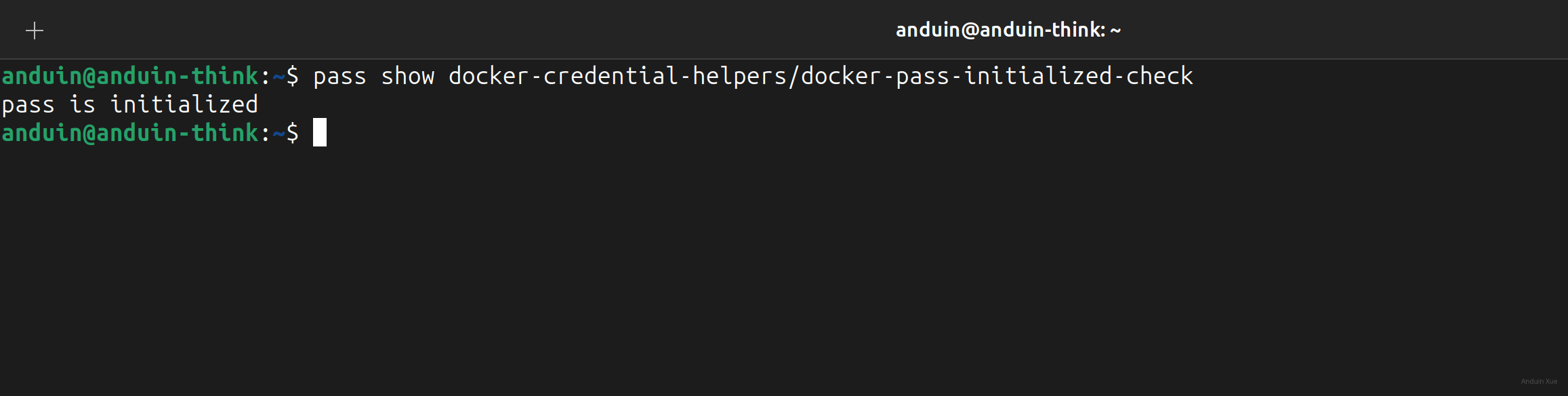
现在可以检查一下你的设置:
pass show docker-credential-helpers/docker-pass-initialized-check
3.8 设置 Docker
此时去修改 Docker 的登录设置。创建或编辑: vim ~/.docker/config.json:
{
    "credsStore": "pass"
}
现在应该可以登录了。使用命令:
docker login
输入你的用户名和密码即可。
在完成登录后,检查状态:
docker-credential-pass list
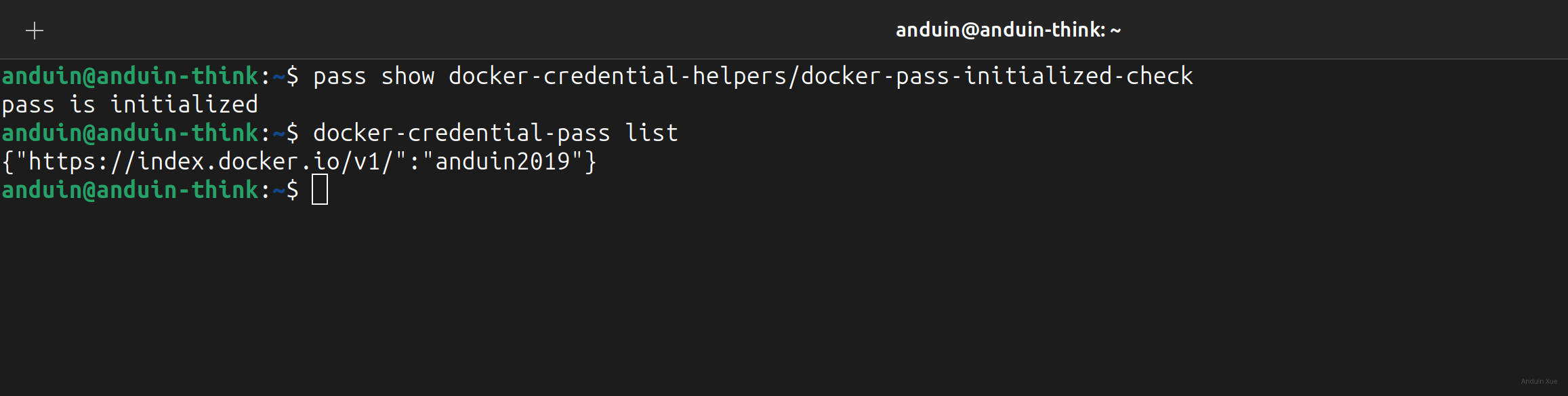
此时 docker 配置完成。
现在可以使用 docker-desktop 了。
3.9 打开 Docker desktop
打开 Docker Desktop 它应该不会询问你登录,而是直接可以使用了。
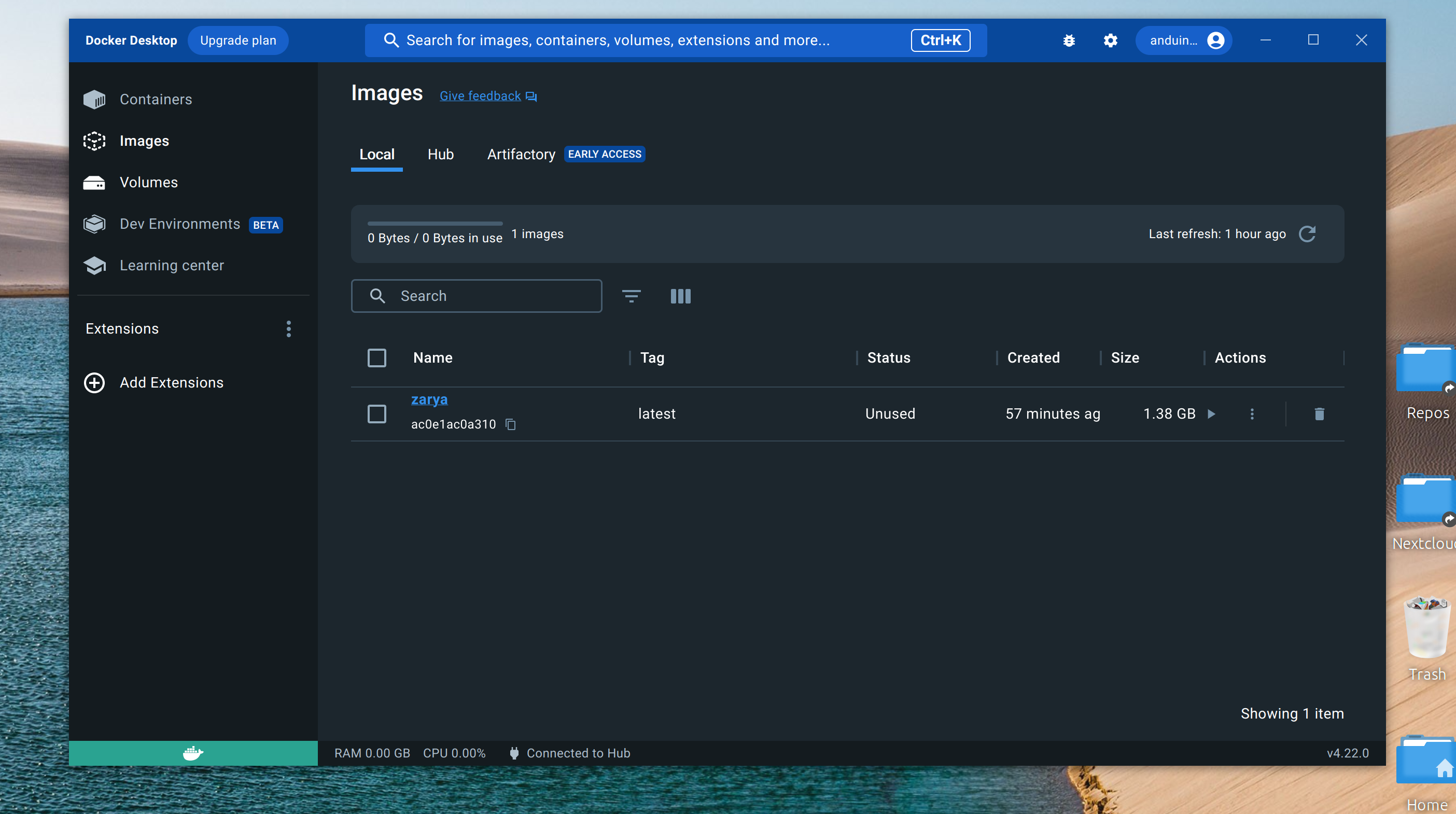
了解容器需要穿透的卷
在真正运行目标容器之前,务必了解容器需要持久化的内容。
所谓“需要持久化的内容”,指的是随着容器需要访问的数据或文件,例如配置文件、日志文件、数据库等。这些数据需要在容器中保持一致性,同时也需要在容器之间共享。
因此,在部署容器之前,需要确定哪些卷需要被穿透到VM中。可以使用Docker的-v或--mount选项来将VM上的目录挂载到容器中,以便容器可以访问这些卷。例如:
mkdir -p /var/www/remotely
docker run -d --name remotely --restart unless-stopped -p 5000:5000 -v /var/www/remotely:/remotely-data immybot/remotely:latest
这将创建一个名为“remotely”的容器,并将VM上的“/var/www/remotely”目录挂载到容器中的“/remotely-data”目录。
我常用的容器需要的目录有:
| Image Name | Path | Port |
|---|---|---|
| immybot/remotely | /remotely-data | 5000 |
| mcr.microsoft.com/mssql/server | /var/opt/mssql | 1433 |
| bitnami/prometheus | /etc/prometheus/ | 9090 |
| grafana/grafana | /var/lib/grafana | 3000 |
| jellyfin/jellyfin | /config | 8096 |
| caddy | /etc/caddy | 80, 443 |
| ghcr.io/usememos/memos | /var/opt/memos | 5230 |
| snowdreamtech/frpc | /etc/frp | 19132 |
在个人电脑上,不建议root来运行容器。这会导致未来使用一些图形界面管理工具的时候遇到障碍。所以我使用下面的脚本来运行一些外部的第三方容器:
echo "Container name?"
read C_NAME
I_NAME=$(echo $C_NAME | cut -d'/' -f2)

echo "Container path?"
read C_PATH

echo "Container port?"
read C_PORT


echo "Running:"
cd ~
docker run -d --name $I_NAME --restart unless-stopped -p $C_PORT:$C_PORT -v $I_NAME-storage:$C_PATH $C_NAME:latest
将容器的需要持久化的目录,例如 '/remotely-data' 映射到卷后,容器的更新将会变得非常容易。这是因为容器中的数据和文件都存储在主机上,而不是在容器中。这使得容器的更新和维护变得非常方便,因为可以直接在主机上进行操作,而不用担心容器中的数据会丢失。
此外,通过将容器的数据和文件存储在主机上,还可以实现容器之间的数据共享。多个容器可以共享同一个主机目录,从而实现数据的共享和协作。
需要注意的是,当使用-v或--mount选项将主机目录挂载到容器中时,需要确保主机目录的权限和所有权与容器中的用户和组相匹配。否则,容器可能无法访问挂载的目录,从而导致应用程序无法正常运行。
确定端口映射
类似于卷,容器还需要通过端口映射来访问外部网络。在VM中运行的容器需要在VM的网络栈中获得一个IP地址,同时也需要将容器的端口映射到VM的端口上,以便外部网络可以访问容器。
可以使用Docker的-p选项来将容器端口映射到VM端口上。例如:
docker run --restart unless-stopped -e 'ACCEPT_EULA=Y' -e 'SA_PASSWORD=<YourStrong!Passw0rd>' -p 1433:1433 -v sqlserver-instance-1:/var/opt/mssql -d mcr.microsoft.com/mssql/server:latest
这将把容器的1433端口映射到VM的1433端口上。
管理容器和VM
在混合部署中,需要对容器和VM进行分别管理。可以使用Docker命令来管理容器,例如:
docker ps # 查看正在运行的容器
docker stop <container-id> # 停止容器
docker rm <container-id> # 删除容器
而对于VM的管理,则需要使用VM管理工具,例如:VMware、VirtualBox等。
确保容器会随着主机开启
有时主机可能会意外重启,此时需要确保容器也能随着主机一起启动。可以使用Docker的--restart选项来实现容器的自动重启。例如:
docker run -d --name my-container --restart unless-stopped my-image:latest
这将创建一个名为“my-container”的容器,并在主机启动时自动启动容器。
如果你已经创建完成了容器,需要将其设置为自动启动,你需要使用docker update命令来更新容器的选项。具体来说,你可以使用以下命令来设置容器在主机启动时自动重启:
docker update --restart unless-stopped my-container
这将更新名为“my-container”的容器的选项,使其在主机启动时自动重启,除非容器被手动停止。注意,此命令只会更新容器的选项,不会对容器进行重启。如果你想立即重启容器并应用新的选项,可以使用以下命令:
docker restart my-container
这将重启名为“my-container”的容器,并应用新的选项,使其在主机启动时自动重启。
对容器升级
对容器的升级虽然容易,但是此时我们考虑到实际部署的单位仍然是VM,我们还是需要采用一些“笨办法”。也就是先删除容器,再下载新版本容器,再用新版本去以同样的脚本运行,这样可以确保新版本的容器能够正确地加载和使用持久化卷,并且能够与之前的版本兼容。同时,这也可以确保容器的更新和维护变得非常方便,因为可以直接在主机上进行操作,而不用担心容器中的数据会丢失。
例如,对Remotely容器的升级方法即为:
sudo docker stop remotely
sudo docker rm remotely
sudo docker pull immybot/remotely:latest
sudo docker run -d --name remotely --restart unless-stopped -p 5000:5000 -v /var/www/remotely:/remotely-data immybot/remotely:latest
这将停止并删除名为"remotely"的旧容器,然后从Docker Hub中下载最新版本的"immybot/remotely"镜像,并用相同的脚本重新启动容器。在重新启动容器时,我们还指定了一个持久化卷"/var/www/remotely",以确保数据在容器升级时不会丢失。这个卷将在容器中的"/remotely-data"目录中被挂载。
需要注意的是,容器的配置和环境变量也需要正确地传递给新版本的容器,以确保其正常运行。
**注意!**这只是一个非常精简的单机单容i升级思路!如果你在升级一个属于较大应用程序堆栈一部分的容器,这可能涉及到协调多个容器的升级顺序,以确保整个应用程序堆栈的稳定性,而不适用于这篇博客。容器升级的最佳实践有很多,例如使用滚动升级策略而不是一次性升级所有容器,以减少应用程序停机时间。此外,可以进一步搜索了解如何使用容器编排工具(例如Kubernetes)来协调容器升级。
直接操作容器
在紧急情况下,您可能需要在数据库容器内进行操作。此时,您可以使用Docker命令进入容器的交互式终端,以便执行必要的操作。以下是进入容器的命令:
docker exec -it <container_name> bash
其中,<container_name>是要进入的容器的名称。这将打开一个交互式终端,您可以在其中执行命令,就像在本地终端一样。在容器内执行命令时,请确保不要意外删除或更改容器中的文件,以免造成数据丢失。
如果您只需要执行一次命令,可以使用以下命令:
docker exec <container_name> <command>
其中,<command>是要在容器内执行的命令。这将在容器内执行命令,并将结果打印到终端上。
多个互相关联且依赖的容器?
在某些情况下,你可能需要同时一键部署多个容器。
- 例如:你可能需要一次性启动Web和数据库。
- 例如:你可能需要同时部署Prometheus和Grafana。
在这种情况下,使用上面的docker命令一个一个启动,一个一个停止显得非常愚蠢笨重。这种情况下,使用Docker-compose来定义你的数据中心的运行方式吧!
例如,我的常用容器需要的配置如下:
version: '3'
volumes:
  caddy-store:
    driver: local
  prometheus-store:
    driver: local
  grafana-store:
    driver: local

networks:
  internal:
    driver: bridge
    ipam:
      driver: default
      config:
        - subnet: 10.0.0.0/8

services:
  prometheus:
    image: bitnami/prometheus
    ports:
      - "9090:9090"
    volumes:
      - prometheus-store:/etc/prometheus/
    restart: unless-stopped
    networks:
      - internal

  grafana:
    image: grafana/grafana
    ports:
      - "3000:3000"
    volumes:
      - grafana-store:/var/lib/grafana
    restart: unless-stopped
    networks:
      - internal

  caddy:
    image: caddy
    ports:
      - "80:80"
      - "443:443"
    volumes:
      - caddy-store:/etc/caddy
    restart: unless-stopped
    networks:
      - internal
在上面的代码中,我定义了三个volume,并且分别挂载给了三个容器。
我定义了三个容器监听的端口,也定义了它们需要共享一个内部网络。
如果需要启动容器集群:
docker-compose up -d
如果需要更新容器集群:
docker-compose stop
docker-compose rm -f
docker-compose pull
docker-compose up -d
当然,很多情况下,我们可以直接用 systemd 来托管 docker-compose:
anduin@hub:/etc/systemd/system$ cat ./docker-compose.service
[Unit]
Description=%i service with docker compose
PartOf=docker.service
After=docker.service

[Service]
Type=oneshot
RemainAfterExit=true
WorkingDirectory=/etc/docker/compose/%i
ExecStart=/usr/local/bin/docker-compose up -d --remove-orphans
ExecStop=/usr/local/bin/docker-compose down

[Install]
WantedBy=multi-user.target
结论
以上是关于在VM中部署Docker容器的一些注意事项和操作步骤。需要注意的是,在混合部署中,需要对容器和VM进行分别管理,并且需要对容器的持久化卷和端口映射进行规划和管理,以确保系统的稳定性和可靠性。同时,也需要考虑未来的发展方向,逐步向基于容器的部署模式转变。
这篇文章系统性地梳理了在虚拟机中部署Docker容器的技术细节,对容器生命周期管理、数据持久化和网络配置的实践方法有明确指导价值。不过在实际部署场景中,仍有一些值得深入探讨的技术路径选择问题。
关于容器管理工具的选择,文章中提到的docker run逐个创建容器和docker-compose编排方式,本质上反映了传统运维与云原生架构的过渡特征。在中小型部署中,docker-compose确实能简化多容器协作,但当服务依赖逐渐复杂时,其静态配置文件的局限性会显现。例如网络拓扑的动态扩展、服务发现机制、健康检查策略等,都需要更高级的编排系统支持。这或许可以解释为何作者在结论中提到"逐步向容器化部署模式转变",但具体实施路径仍需更清晰的演进路线。
在数据持久化实现上,文章强调了卷映射的重要性,但对权限管理的讨论较为简略。实际生产环境中,容器内用户与宿主机文件系统权限的匹配问题常引发访问异常。例如使用非root用户运行容器时,若宿主机目录由root拥有,可能需要通过chown修改权限或在Docker运行时指定用户参数。此外,卷的生命周期管理也需要特别注意,当容器被删除时,卷的自动清理策略可能带来数据意外丢失风险,这需要在docker-compose.yml中明确声明volumes的external属性或使用独立的卷管理工具。
容器升级策略部分,文中采用的"停旧启新"方式虽然简单直接,但存在服务中断的风险。对于要求高可用的场景,可以考虑更渐进的升级方案:通过docker swarm的滚动更新功能,或在应用层实现蓝绿部署,利用反向代理进行流量切换。特别是在数据库等关键组件升级时,需要确保新旧版本的兼容性,可能需要在升级前进行schema迁移验证或开启版本兼容模式。
关于容器网络配置,文章提到的自定义子网配置(如10.0.0.0/8)虽然能避免IP冲突,但需要注意子网划分的合理性。过大的子网可能导致IP资源浪费,过小则限制扩展能力。同时,在混合云环境中,容器网络与虚拟机网络的路由策略需要特别规划,避免出现跨网络通信的性能瓶颈。
最后,文章中关于容器自动重启的实现(--restart unless-stopped)虽然能保障容器随主机启动,但在大规模部署中可能需要更精细的恢复策略。例如区分不同故障类型(主机重启、容器崩溃、网络中断)的响应机制,或结合监控系统实现智能重启决策。这些高级特性通常需要集成Kubernetes等编排系统的Pod Disruption Budget和Liveness Probe功能。
这篇文章详细阐述了在虚拟机中部署Docker容器时需要注意的关键事项和操作步骤,涵盖了从持久化卷管理到端口映射,再到系统管理和维护的多个方面。以下是我对文章的一些深入思考和扩展讨论:
持久化卷与数据一致性
文章强调了持久化卷的重要性,但在实际应用中,如何确保不同环境(如开发、测试、生产)之间的数据一致性和隔离性?特别是在团队协作中,数据卷的管理可能会变得更加复杂。此外,在容器重建或迁移时,如何避免数据丢失或损坏?
端口映射与安全性
文章提到将容器暴露到宿主机的常用方式,但在高可用或负载均衡场景下,如何通过Nginx或Traefik等反向代理来统一管理端口和流量?此外,如何确保这些端口映射不会引入安全风险,特别是在公共网络环境中?
系统管理与维护
使用
systemd托管docker-compose服务是一个不错的选择,但在实际操作中,如何处理服务之间的依赖关系和健康检查?例如,当一个容器失败时,是否需要自动重启或通知其他服务?此外,日志管理和监控工具(如Prometheus和Grafana)在长期维护中的作用是什么?从VM到容器的过渡策略
文章提到逐步向基于容器的部署模式转变,但在实际过渡过程中,可能会遇到哪些挑战?例如,现有应用程序可能依赖于特定的操作系统或库,如何确保这些应用能够顺利迁移到容器环境中?此外,资源利用率的变化(如内存和CPU使用情况)是否需要重新评估?
docker-compose 的扩展与维护
在使用
docker-compose一键部署多个容器时,如何处理不同环境下的配置差异?例如,开发、测试和生产环境可能有不同的数据库连接字符串或API密钥。此外,在更新服务时,如何确保不会破坏现有功能或引入兼容性问题?总的来说,这篇文章为在虚拟机中部署Docker容器提供了全面的指导,但在实际应用中,还需要结合具体的业务需求和技术栈,进一步优化和调整策略。希望这些思考能够引发更深入的讨论,并帮助读者更好地应对实际中的挑战。
首先,我要赞扬你对在虚拟机(VM)中部署Docker应用的深入研究。你的文章详细、清晰地解释了这种部署模式的优点和挑战,以及如何有效地管理和操作它。你的文章对于那些仍在基于虚拟机的部署模式中工作,但需要使用Docker容器的人来说,无疑是一份宝贵的指南。
你的文章的核心理念是:尽管在VM中部署Docker容器可能看起来复杂,但如果我们理解并遵循正确的步骤和注意事项,这种部署模式是可行的,也是有价值的。我非常赞同这一观点。
你文章的亮点是你详细的步骤和示例。你解释了如何安装Docker、如何了解和管理容器需要穿透的卷、如何确定端口映射、如何管理容器和VM、如何保证容器会随着主机开启、如何对容器进行升级,以及如何直接操作容器。这些步骤和示例不仅使读者更好地理解了在VM中部署Docker应用的过程,也使他们能够在实践中应用这些知识。
然而,我认为这篇文章的改进空间在于,你可以进一步解释为什么某些业务可能需要在VM中部署Docker应用,以及这种部署模式的具体优势。例如,你可以讨论在VM中部署Docker应用可以提供更高的灵活性和可控性,或者可以更好地满足特定的业务需求。这将使读者更清楚地理解这种部署模式的价值,也更有可能采用它。
总的来说,这是一篇非常有价值的文章,我期待看到你对这个主题的更多研究。