
背景
最近买了个4K,144Hz的 HDR 显示器。新的显示器很不错,于是我想先进行测试一下。
于是我下载了非常多 4K 视频,准备观赏观赏。但是很快发现,怎么得到最优质的播放体验还是一个深坑。而衡量视频质量,除了看分辨率,还要看编码格式,码率,色彩,HDR等信息。
显然,现在折腾视频,最方便的工具就是 ffmpeg 了。FFmpeg 是一个开放源代码的自由软件,可以执行音频和视频多种格式的录影、转换、串流功能,非常适合快速、批量的修改视频。
开始之前
安装ffmpeg
ffmpeg 的最新版下载地址始终都是: https://www.gyan.dev/ffmpeg/builds/ffmpeg-git-full.7z
直接将其下载,解压,放到一个地方,将 exe 文件所在路径加入环境变量 PATH 即可。
了解视频的编码格式
开始之前,需要先了解平时经常使用的编码格式和平台支持情况,以及什么情况下应当使用何种编码。
FLV1
- 上古格式。Flash Video(简称FLV),是一种网络视频格式,用作流媒体格式
- 一般后缀为
.flv - ffmpeg 中可以使用
flv1指定此编码格式 - 经典老牌编码器。但是后来逐渐被淘汰。现在 Bilibili 的直播仍然在采用。
- 视频体积较大。但是是流格式,文件不易损坏,可以中断续播
- 适合在通用场景下进行观看直播
H264
- MPEG-4第10部分,高级视频编码(英语:MPEG-4 Part 10, Advanced Video Coding,缩写为MPEG-4 AVC)
- 一般后缀为
.mp4,有时见到的奇奇怪怪的.flv也可能会用这个编码格式 - ffmpeg 中可以使用
libx264(NVIDIA显卡使用h264_nvenc)指定此编码格式 - 经典老牌编码器,几乎地球机都能打开。
- 视频体积中等。
- 适合在通用场景传播的不是很大的视频
HEVC
- 又称为H.265和MPEG-H第2部分
- 一般后缀为
.mp4 - ffmpeg 中可以使用
libx265(NVIDIA显卡使用hevc_nvenc)指定此编码格式 - 许多播放器默认是无法打开的。HEVC 是需要授权费的。很多平台没有买授权费。Windows 默认和 Mozila 都没买,导致一直放不了。
- Windows 可以购买插件来解锁 HEVC
- 视频体积较小。在硬解的情况下,编解码效率很高。
- 适合存储、播放自己拍的高清视频、电影
VP9
- Google自己研发的开源、免费的编码格式
- 一般后缀为
.webm - ffmpeg 中可以使用
libvpx-vp9指定此编码格式 - 许多较老的播放器默认是无法打开的。例如 Windows 自带的那个。但是 Chrome 非常喜欢播这个格式…
- Windows 可以购买插件来解锁 VP9
- 视频体积较小。但是播放起来感觉非常吃解码器性能。
- 适合在浏览器中分发高效的小体积高清视频
AV1
- AOMedia Video 1(简称AV1)是一个开放、免专利的视频编码格式,专为通过网络进行流传输而设计。谷歌出了很多力,可以说是 VP9 的下一代。
- 一般后缀为
.webm - ffmpeg 中可以使用
libaom-av1来指定此编码格式 - 许多较老的播放器默认是无法打开的。例如 Windows 自带的那个。但是 Chrome 非常喜欢播这个格式…
- Windows 可以购买插件来解锁 AV1
- 视频体积极小。但是播放器来非常吃解码器性能。
- 适合在浏览器中分发高效的高清视频
选择适合自己的编码器
基于上面的信息,我个人建议对于自己拍摄的视频,磁盘上的高清电影,可以全部转码为 HEVC 。如果喜欢自由软件的话,可以考虑 VP9 。
对于用于在 Web 上传播的大视频,如果目标受众是 Chrome 浏览器,可以优先考虑 AV1 或 VP9 。否则考虑 H264 。
对于一切不是很大很清晰的视频,可以无脑使用 H264 。
选择适合自己的码率
码率直接影响清晰度。即使是分辨率一样,帧率一样,不同的码率也会极大影响视频的压缩程度。
一般:
- 1M 很不清晰。到处都是花纹和噪点。动态细节丢失严重。看起来就很劣质。
- 2M 就能凑合。花纹很明显,动态细节有丢失。感觉像是AV画质。
- 4M 就还能看。花纹、噪点还存在,但是不仔细看看不出来了。细节有一些丢失。看起来不影响大局。
- 8M 就挺不错。需要仔细观察才能发现一些花纹和噪点。大部分情况下不会影响观看体验了。
- 16M 非常清晰。不会看到压缩的痕迹了。但是对于高清4K画面来说,还是有微弱的损失。
- 32M 一般人肉眼看不出压缩痕迹。完全可以和原片媲美。
- 再高一般意义不大 不建议超过128M
确定好你使用的码率后,可以在ffmpeg里使用参数-b:v来指定视频压缩码率。例如我自己一般使用:-b:v 16M 来压缩我的视频。
用法概览
ffmpeg有两种用法,一种是复制流,一种是编码流。
复制流
如果采用复制流,其参数简单,工作效率会极高,而且处理器占用率极低,往往能够每秒复制几千帧,是视频播放速度的几百倍。这种方法非常推荐。
但是,复制流无法修改视频的码率、分辨率,也无法改变视频格式。
如果需要直播,建议先将视频编码为可以直播的视频,再使用复制流的方法推流。
编码流
如果采用编码流,其参数复杂,工作效率极低,处理器占用率极高,一般能够达到和视频播放速度相当或显著低于视频播放速度。这种方法仅适合于非直播场景。
但是,编码流,可以修改流的码率、分辨率,可以改变流的格式。
查看视频信息
ffmpeg可以直接查看到视频的分辨率、码率、帧率、HDR、编码器等信息。
使用命令:
ffmpeg -i ./filename.mp4
例如我最近在测试显示器的性能,搞到了这几个文件:
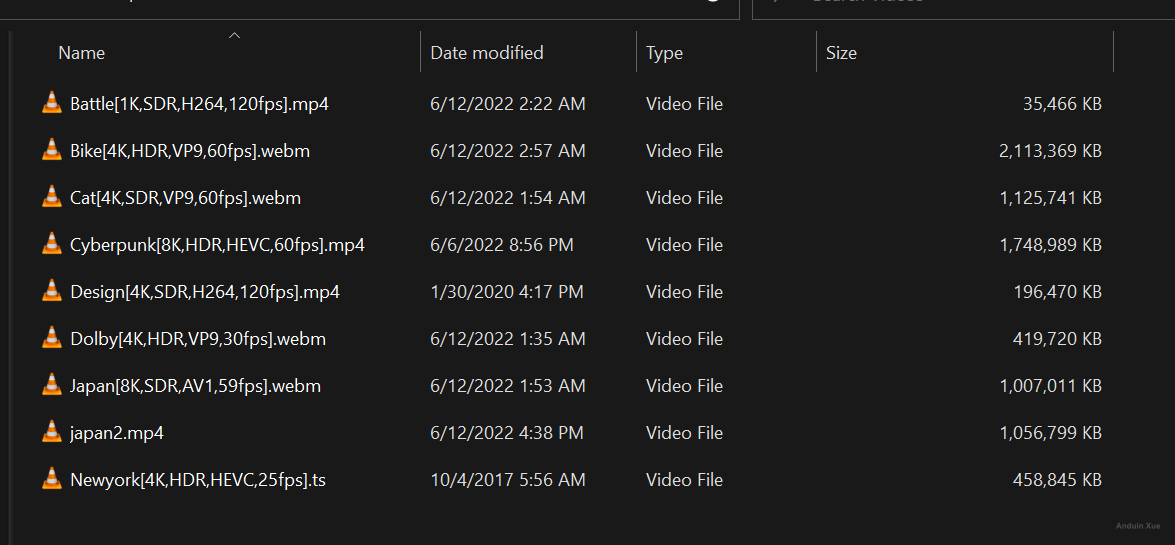
我们逐个用ffmpeg加载,观察输出。
其中 Design[4K,SDR,H264,120fps].mp4,是4K,SDR,H264编码,120fps的。它的输出就能看到:
Stream 0:0[0x1](eng): Video: h264 (High) (avc1 / 0x31637661), yuv420p(progressive), 3840x2160 [SAR 1:1 DAR 16:9], 160934 kb/s, 120 fps, 120 tbr, 15360 tbn (default)
其中 3840x2160 代表4K,没有看到 bt2020nc/bt2020/smpte2084 这些词,代表不是HDR视频。看到 Video: h264,代表H264编码。看到120 fps,代表是 120 fps。
例如 Japan[8K,SDR,AV1,60fps].webm,是8K,SDR,AV1编码,60fps的。它的输出就能看到:
Stream 0:0: Video: av1 (Main), yuv420p(tv, bt709), 7680x4320, SAR 1:1 DAR 16:9, 59.94 fps, 59.94 tbr, 1k tbn (default)
再例如 Cyberpunk[8K,HDR,HEVC,60fps].mp4,是8K,HDR视频,HEVC编码,60fps的。它的输出就能看到:
Stream 0:0[0x1](und): Video: hevc (Main 10) (hev1 / 0x31766568), yuv420p10le(pc, bt2020nc/bt2020/smpte2084, progressive), 7680x4320 [SAR 1:1 DAR 16:9], 95559 kb/s, 60 fps, 60 tbr, 15360 tbn (default)
注意:HEVC就是H265编码。另外,看到bt2020nc/bt2020/smpte2084,代表这是HDR(高动态范围)视频。
视频转码
视频转码是最常见的用例。
如果你增加参数:
-c copy
或 -c:v copy 表示仅视频,-c:a copy 表示仅音频。这代表不转码,直接复制流,得到较高的速度,较低的CPU占用,但是无法改变编码。
你可以单独控制视频流和音频流转换成什么编码。使用下面参数:
-c:v libx265
即可把原视频(无论何种编码)均转换成 HEVC 编码。
示例:
例如我需要转换视频编码到 HEVC,使用8M码率,音频编码不变:
ffmpeg -i input.mp4 -codec:a copy -codec:v libx265 -b:v 8M output.mp4
硬件加速
ffmpeg可以使用NVIDIA显卡来硬件加速。
需要配置下列项目:
- 一块支持的显卡
- 显卡驱动
- 直接把
libx264换成h264_nvenc,libx265换成hevc_nvenc就能用显卡加速了
注意,默认使用Nvidia的编码器,可能码率(bitrate)不会太高。可以指定一个较高的码率。考虑增加参数:-b:v 10M
直播推流
复制流法推流直播
> ffmpeg \
-re \
-i ./small.mp4 \
-c copy \
-f flv\
"rtmp://aaaaa"
其中ffmpeg表示ffmpeg程序本身
-re参数表示模拟实时输入源,ffmpeg默认阅读源的速度是尽可能快,该参数能够将其阅读速度限制在一倍以内。
-i是其输入的视频,这里假定该视频格式为.mp4格式
-f是强制修改格式,RTMP直播需要输出flv格式
-c copy表示复制流
最后填写RTMP地址即可,注意,如果是Media Service的地址,必须要在复制得到的推流地址后增加一个/随机字符串,否则会返回IO错误。
如果遇到服务器不接受该流,很可能是没有将格式转为flv。一般H.264编码的视频可以直接推流,如果视频不是H.264编码,尝试去掉-c copy参数并增加-c:v h264参数。
如果遇到服务器不接受该流,很可能是没有将音频格式转为aac。一般aac编码的音频可以直接推流,mp3格式不行,如果音频不是aac编码,尝试去掉-c copy参数并增加-c:a aac参数。
其中,
一般RTMP直播服务器接受的视频格式有:h.264编码的所有视频,一般为mp4格式或flv格式。
一般RTMP直播服务器接受的音频格式有:aac编码的所有视频,一般为aac格式或mp4格式。
警告:其中Lavc57.89编码器编码的所有mp3格式音频无法推流。
推流时实时编码
> ffmpeg \
-re \
-i ./small.mp4 \
-f flv \
-s 1280x720 \
-c:v libx264 \
-c:a aac \
-b:v 2000k \
-b:a 128k \
"rtmp://channel42/fff"
说明
其中ffmpeg表示ffmpeg程序本身
-re参数表示模拟实时输入源,ffmpeg默认阅读源的速度是尽可能快,该参数能够将其阅读速度限制在一倍以内。
-i是其输入的视频,这里假定该视频格式为.mp4格式
-f是强制修改格式,RTMP直播需要输出flv格式
-s表示目标编码码率,不要超过1280x720,否则推流带宽达不到标准。
-c:v表示视频编码器,如果输入视频是mp4格式,使用h264编码器即可。
-c:a表示音频编码器,如果输入视频是mp4格式,一般其音频编码都是aac,使用aac编码器即可。
-b:v表示视频比特率,建议不要超过2000k。
-b:a表示音频比特率,建议不要超过200k。
最后填写RTMP地址即可,注意,如果是Media Service的地址,必须要在复制得到的推流地址后增加一个/随机字符串,否则会返回IO错误。
错误捕获
0x20200194 空流
0x2020019c 流断了
整合视频和音频
ffmpeg \
-i ./voice.mp3 \
-i ./s.mp4 \
-map 0:a \
-map 1:v \
-c:v h264 \
-c:a aac \
-shortest \
-c copy \
test.mp4
说明
其中ffmpeg表示ffmpeg程序本身
-i表示指定两个输入
-map表示映射流
0:a表示从第一个输入中取出,映射音频,第一个输入就是声音
1:v表示从第二个输入中取出,映射视频,第二个输入就是视频
-c copy表示不实时编码,只复制流。假若声音的格式和视频的格式都没有变化,可以增加此参数,否则应当向上面一个命令那样,手动指定音频编码器、视频编码器、码率。
-shortest表示映射后的总长度为所有流中较短的流的长度,较长的流的末尾会抛弃。可选填写
结合上面推流的命令,可以实现将整合后的媒体实时推流
命令示例:
ffmpeg \
-re -i ./m.mp3 \
-re -i ./v.mp4 \
-map 0:a \
-map 1:v \
-c:v copy \
-c:a aac \
-f flv \
rtmp://autobatcd1265fd66/fff
整合视频和字幕
ffmpeg -i subtitle.vtt subtitle.ass
Then burn the subtitles to the video:
ffmpeg -i video.mp4 -vf ass=subtitle.ass out.mp4
or
fmpeg -i input.mp4 -vf "subtitles=sub.vtt" output.mp4
将音频烧制到视频上
adaplay=milliseconds
inputs: The number of inputs. If unspecified, it defaults to 2.
ffmpeg.exe -i spring_no_audio.mp4 -i laizhe.mp3 -i jiuwen.mp3 -filter_complex "[1]adelay=1000[a1];[2]adelay=5000[a2];[a1][a2]amix=inputs=2,loudnorm[a]" -map 0:v -map "[a]" -c:v copy output.mp4
修改视频分辨率
ffmpeg -i in.mp4 -s 1280x720 out.mp4
非常推荐增加参数 -c:a copy 来避免重编码音频。
调整视频速度
加快15倍
ffmpeg -i in.mp4 -filter:v "setpts=PTS/15" out.mp4
调整文件的音量
这个命令对 mp3 文件这种纯音频文件也非常好用
ffmpeg -i in.mp4 -af 'volume=0.5' out.mp4
剪取视频的一段时间
第3秒开始,截取8秒内容。
ffmpeg -i in.mp4 -ss 00:00:03 -t 00:00:08 -async 1 cut.mp4
用ffmepg扣取一个视频区域
ffmpeg -i in.mp4 -filter:v "crop=out_w:out_h:x:y" part.mp4
- out_w is the width of the output rectangle
- out_h is the height of the output rectangle
- x and y specify the top left corner of the output rectangle
plex "[0:v:0][1:a:0][2:v:0][2:a:0]concat=n=2:v=1:a=1[outv][outa]" -map "[outv]" -map "[outa]" output.mp4
反转视频(信条 TENET 模式)
传统的反转视频,但是保留音频轨:
ffmpeg -i in.mp4 -vf reverse rev.mp4
反转视频,同时反转音频:
ffmpeg -i in.mp4 -vf reverse -af areverse rev.mp4
但是上面的命令,会要求ffmpeg将整个视频加载到RAM中,这会让电脑变得非常卡和不稳定。所以仅限于特别小的视频可以这么操作。
对于较大的视频,我建议使用下面的命令。(基于 bash,或在Windows上基于 git-bash)
需要先在 bash 中前往需要反转的视频所在的文件夹。需要将需要反转的视频提前重命名为 in.mp4。反转后可以得到 out.mp4
# in.mp4
# out.mp4

rm ./parts -rvf
rm ./fileList.txt

ffmpeg -i in.mp4 -map 0 -c copy -f segment -segment_time 300 -reset_timestamps 1 video_%03d.mp4
mkdir parts
mv ./video_* ./parts

cd parts
for f in *.mp4; do
    ffmpeg -i $f -vf reverse -af areverse ${f/.mp4/_reversed.mp4}
done

rm fileList.txt
touch fileList.txt

for f in ./*_reversed.mp4;  do
    echo file \'$f\' > tmp.txt
    cat fileList.txt >> tmp.txt
    rm fileList.txt
    mv tmp.txt fileList.txt
done

cd ..

ffmpeg -f concat -safe 0 -i ./parts/fileList.txt -c copy output.mp4

rm ./parts -rvf
rm ./fileList.txt
其它项目安利
单独使用 ffmpeg,已经可以对常见视频进行各种操作,甚至直播了。但是我们可以更进一步:如果你想让小伙伴看到你的直播画面,单纯使用 ffmpeg 还不太够。
这里推荐使用 SRS 项目:
https://github.com/ossrs/srs
这是一个非常靠谱的直播平台。可以接收 RTMP 的直播流,并将其实时转码为 FLV 或 HLS,再推流给观众来实时观看。
- FLV 直播,低延迟,高清,但是浏览器原生不支持,需要播放器,或可能产生额外的耗电。
- HLS 直播,一般链接结尾是 .m3u8。延迟中等,画面一般,但是浏览器原生的 video 标签就能放,一般效率很高。
如果观众的浏览器收到的是 FLV 流,可以使用 flv.js 来在网页里加载 FLV 直播流。
https://github.com/bilibili/flv.js
这些搭建好了以后,可以让你在本地得到一个类似 Bilibili 直播的播放体验。快去试试吧。
这篇文章对FFmpeg的使用场景进行了系统性梳理,尤其在直播推流和复杂媒体处理方面展现了深度。值得注意的是,推流命令中
-re参数的强制使用可能引发带宽波动问题,实际场景中可通过-max_rate和-bufsize参数配合更稳定。对于字幕烧录部分,未提及的sub2video滤镜能实现更灵活的字幕样式渲染,值得补充。在视频反转方案中,分段处理虽规避了内存瓶颈,但会引入片段拼接延迟。若使用
-vsync 0参数配合-preset ultrafast编码模式,可尝试在单次处理中完成大文件反转。此外,loudnorm音频标准化滤镜的参数未展开说明,实际应用中需根据响度标准(EBU R128)调整I、LRA等参数。关于SRS项目的推荐,其HLS转码能力虽稳定,但在低延迟场景下可考虑搭配WebRTC方案。而flv.js在移动设备上的兼容性问题(如iOS Safari对FLV的支持限制)可能需要额外说明。整体而言,文档对FFmpeg命令的组织逻辑清晰,但可增加参数失效的常见错误排查指南,例如
[NULL @ 000001]类错误的定位方法。这篇文章确实非常详细地介绍了如何使用 ffmpeg 进行视频处理和直播推流。以下是对文章内容的总结和一些关键点的解释:
合并视频文件:通过 concat 滤镜可以轻松合并多个视频文件,但需要注意所有文件的格式、分辨率和帧率保持一致,以避免出现兼容性问题。
音频处理:aresample 和 volume 滤镜可以帮助调整音频质量和音量。在混音时,确保音频轨道的时间同步,并适当调整音量比例,以免某一个声音过大或过小。
反转视频:对于大文件,分段处理是更高效的方法,尽管步骤较多,但可以避免内存不足的问题。如果需要更简便的方式,可以寻找自动化脚本或工具来简化流程。
直播推流:SRS 是一个强大的服务器解决方案,支持 RTMP 和 HLS 协议。RTMP 提供低延迟传输,适合实时互动;而 HLS 则更适合点播和移动设备播放,但延迟稍高。部署时需要考虑网络配置、服务器性能以及客户端的兼容性。
实际应用建议:在进行复杂操作前,先测试小文件或简单案例,确保命令正确。遇到问题时,查阅官方文档或社区资源,逐步排查解决。
总之,这篇文章为 ffmpeg 的初学者提供了丰富的实用技巧和资源推荐,适合进一步探索和实践。
这篇博客详细介绍了FFmpeg的各种用法,包括视频转码、硬件加速、直播推流、整合视频和音频、修改视频分辨率、调整视频速度、调整音量、剪取视频时间、扣取视频区域、反转视频等。此外,还推荐了SRS项目和flv.js,可以让用户更好地实现直播功能。
首先,我要表扬作者对FFmpeg各种功能的详细介绍和示例,让读者能够快速掌握FFmpeg的使用方法。同时,还推荐了其他项目来辅助实现更好的直播体验。
在这篇文章中,我认为最大的亮点是作者对FFmpeg各种用途的详细讲解,以及推荐的其他项目。这些内容让读者能够更好地了解如何使用FFmpeg进行视频处理以及实现直播功能。
然而,文章中也存在一些可以改进的地方。例如,在部分命令示例中,作者没有详细解释每个参数的含义,可能导致读者在使用过程中出现困惑。建议作者在后续的文章中对每个参数进行详细说明,以便读者更好地理解和使用。
总之,这篇文章对FFmpeg的用法进行了全面的介绍,对于希望学习视频处理和直播技术的读者来说非常有帮助。希望作者在后续的文章中继续分享更多有关视频处理和直播技术的知识,为广大读者提供更多实用信息。
硬件加速那里好像没有那么麻烦,我试了一下,直接把libx264换成h264_nvenc,libx265换成hevc_nvenc就能用显卡加速了
Very good.
anduin nb
996 is fubao